

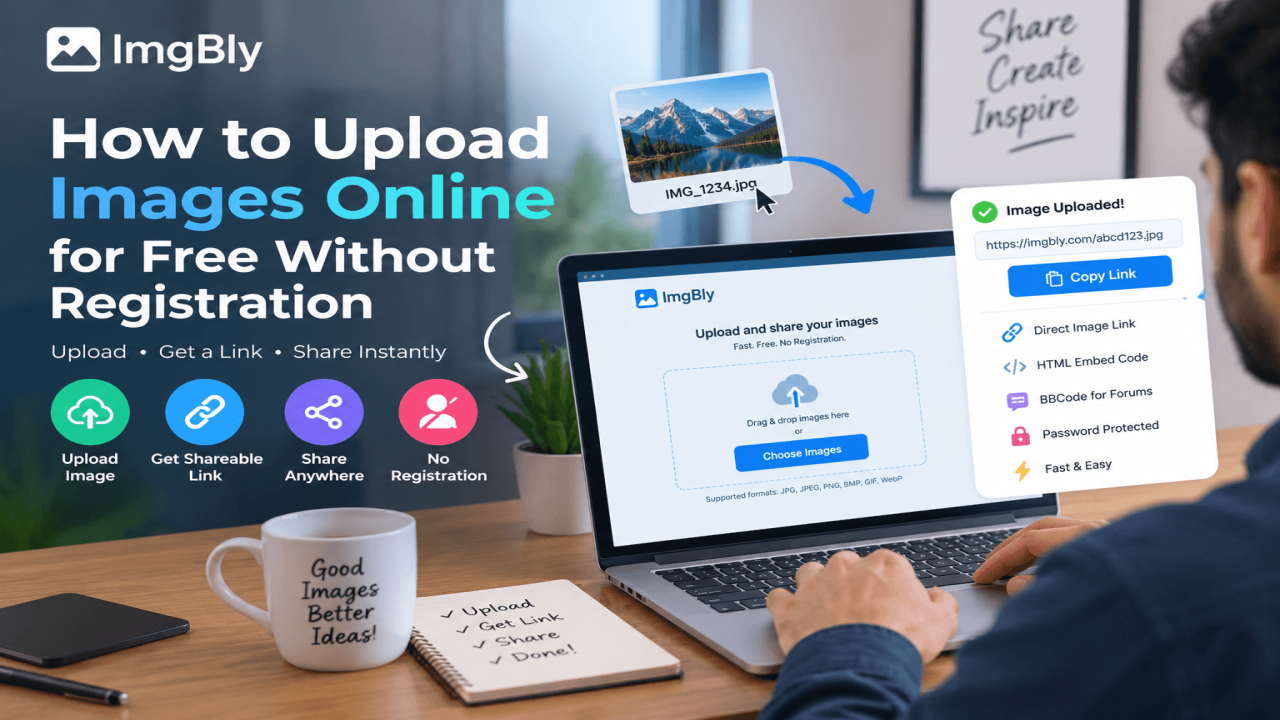
How to Upload Images Online Free Without Registration
Uploading an image shouldn't require creating another account verifying an email address or setting up a cloud-storage folder. Sometimes you just need to upload a screenshot, photo, graphic, GIF or product image and send someone a link.
If your goal is to upload images free without registration an image-hosting service is usually the simplest solution. You select an image, from your phone or computer upload it and get an URL that can be opened in a browser or used on websites, forums and other online platforms.
ImgBly is one option built around this workflow. Its current upload page supports formats including JPG, JPEG, PNG, BMP, GIF and WebP and it provides direct image links after uploading.
This guide explains how no-registration upload images online free works when it makes sense what to check before uploading and how to share hosted images correctly.
What Does “Upload Images Online Free Without Registration” Mean?
A no-registration image uploader lets you put an image on the web without making a user account.
The simple steps go like this:
Your device → Image hosting service → Hosted image → link
Instead of sending the original file over and over you just share the link that gets created. People who have the access can open that link in any web browser.
This is not the same as posting a photo to a media site. Image hosting is about saving the image online and giving you an easy way to get it share it or use it in other places.
It’s also different from cloud storage. Services that focus on storage usually care more about folders syncing files keeping documents safe backing up data and teamwork. But, with an image host the goal is simpler. Turn your picture into a link quickly and easily.
Why Upload an Image Instead of Sending the File?
Sending an attachment can work well in many situations. Image hosting becomes useful when you need to share the image many times or when you need to use it in a place that expects an image URL. I find that image hosting is very handy when I need to share screenshots
For example imagine you have a screenshot that shows a software problem. Of attaching that screenshot to several messages separately you can upload it just once and share the same link.
Other practical uses include:
- Sending design previews to a client
- Sharing screenshots with technical support
- Posting images on forums
- Sharing product photos, with customers
- Adding graphics to documentation
- Sending a photo through a platform where attachmentsre inconvenient
- Embedding an externally hosted image on a webpage
- Sharing GIFs using a URL
- Providing visual examples in online discussions
The important distinction is convenience. Image hosting does not automatically make an image better, private or more secure. It simply gives the image a location that can be accessed through a link.
How to Upload Images Online Free Using ImgBly
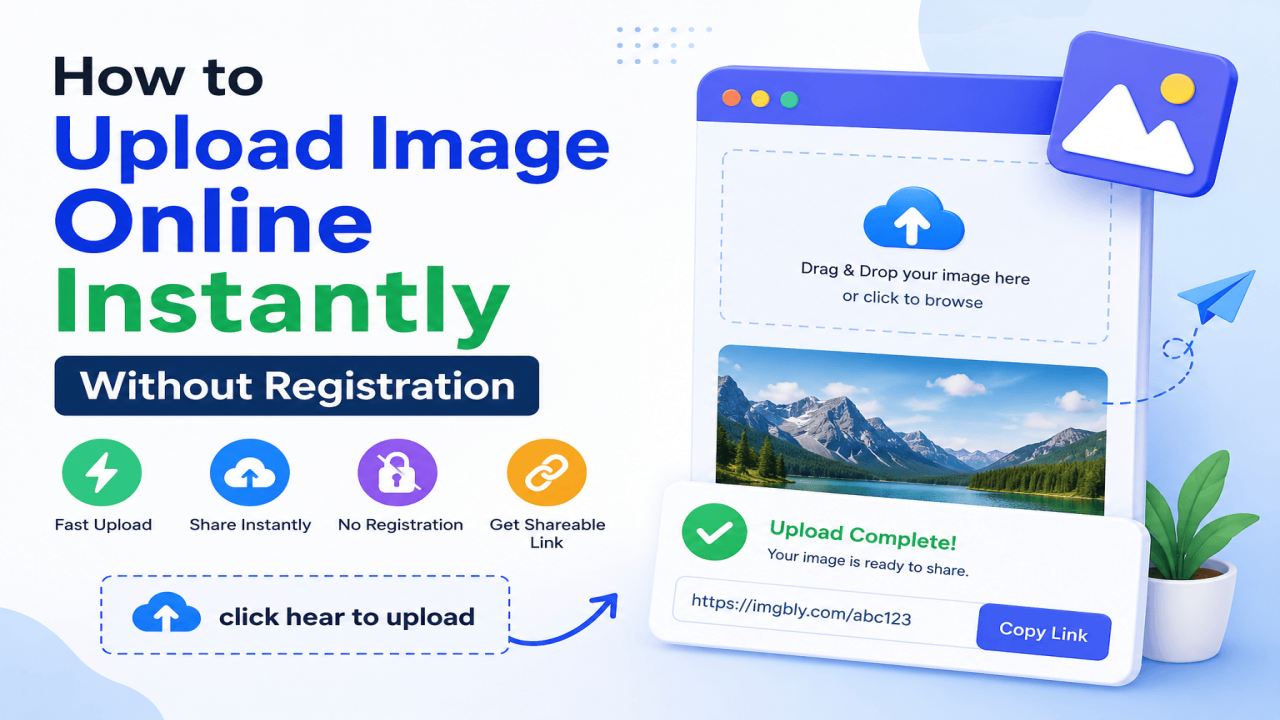
ImgBly's current homepage provides a direct upload area where users can drag and drop an image or browse for a file from their device. The platform lists support for JPG, JPEG, PNG, BMP, GIF, and WebP files.
Step 1: Open ImgBly
Visit ImgBly and locate the image-upload section on the homepage.
[Internal link opportunity: ImgBly upload/home page]
You don't need to begin by navigating through complicated menus when your goal is simply to upload and share an image.
Step 2: Select the Image You Want to Upload
Choose the image from your computer, phone, or other device.
Before uploading, make sure you're selecting the correct version. This sounds obvious, but it prevents common problems such as accidentally sharing:
- An unfinished design
- A screenshot containing private notifications
- A full-resolution file when a smaller copy would be more practical
- A photo containing information you didn't intend to share
ImgBly currently lists JPG, JPEG, PNG, BMP, GIF, and WebP on its upload interface.
Step 3: Upload the Image
Start the upload and allow the file to finish transferring.
Avoid closing or refreshing the browser tab while an upload is still being processed. With larger images or slower internet connections, the transfer may require more time than a small screenshot.
ImgBly's current free Starter plan lists a maximum file size of 20 MB and the ability to upload two files at once. Because service limits can change, check the upload page before relying on a specific limit for an important workflow.
Step 4: Test the Link Before Sharing It
Open the copied link in another browser tab.
Check that:
- The correct image appears
- The image loads completely
- The link hasn't been copied incorrectly
- There isn't unwanted information visible in the image
This small check is particularly useful when sending a screenshot to a customer, client, support team, or public discussion.
Direct Image Links vs Regular Sharing Links
Not every URL created by an image service works in the same way. A direct image URL goes to an image file that a browser can show as an image. A regular sharing URL might instead go to a web page that has the image plus other parts of the page. The difference is important when putting images into places.
For example HTML uses the src part of an <img> tag to say which image should appear. MDN explains that src is the URL or path for the image.
A simple example is:
<img src="IMAGE-URL”, alt="Description of the image">
When you are only sending an image to someone though you usually do not need any HTML. Just take the link and send it.
When No-Registration Image Uploading Makes Sense
Anonymous or guest-style uploading is particularly useful for quick, low-complexity tasks.
Sharing a Screenshot
Suppose you're troubleshooting a website and need to show someone an error message. Uploading the screenshot and sending its URL can be easier than working around attachment limitations.
Sending a Design Preview
A designer can upload a JPG or PNG preview and send the hosted link to someone who only needs to review the visual. For final project files or confidential work, a managed project workspace may still be more appropriate.
Posting an Image on a Forum
Some forums support direct image URLs or BBCode rather than conventional attachments. ImgBly currently provides both direct image links and BBCode embeds.
Sharing Product Photos
A seller may need to send several product photographs through chat, support messages, or other online channels. Hosted URLs can make individual images easy to open.
For a large e-commerce catalog, however, dedicated website media storage is generally easier to manage than manually hosting every product image one at a time.
Sharing GIFs
GIFs are still useful for demonstrations, simple animations, reactions, and short visual instructions. ImgBly lists GIF among the formats supported by its upload interface.
Privacy and Security: What You Shouldn't Upload
Convenience should not take the place of caution.
If you do not clearly know how access to a hosted image is controlled then it is best to avoid uploading information to a public or link-based image host.
Examples are:
- Passwords or recovery codes
- Banking details
- Identity documents
- Private customer information
- Confidential business documents
- Screenshots that include personal conversations
- Images that include addresses or other information that you do not want to share
- A to-guess URL should not be considered the same, as private encrypted storage.
ImgBly lists password-protected files as one of the features of its free Starter plan. When an access-control feature is there you should still think about whether an image should be placed on a third-party hosting platform at all.
A good habit is to check screenshots before uploading them. Browser tabs, notifications, names, email addresses, account balances and other private information can show up in parts of a screenshot that're not related to what you are trying to share.
A Quick Checklist Before Sharing an Uploaded Image
Before copying the link and sending it, check:
- Is this the correct image?
- Does it contain private information?
- Is the file format supported?
- Is the file within the current upload limit?
- Do I need a direct link, HTML code, or BBCode?
- Does the generated link actually work?
- Will this image need to remain available long term?
- Would private cloud storage be more appropriate?
- If it's going on a website, have I added useful alt text?
For a quick screenshot, most of this takes only a few seconds. For business or website images, thinking through these questions can prevent problems later.
Frequently Asked Questions
Can I upload images online for free without making an account?
Yes. Some image-hosting services let you upload without needing to create an account. ImgBly gives a direct upload option for putting up and sharing supported image formats.
What image formats can I upload to ImgBly?
ImgBlys current upload interface shows JPG, JPEG, PNG, BMP, GIF and WebP. Check the upload page for the supported formats before uploading a file that matters.
What happens after I upload an image?
An image host usually gives a URL that you can copy and share. ImgBly now offers image links and also shows HTML and BBCode embedding options.
Can I upload screenshots online for free?
Yes. Screenshots that are saved in a supported image format can be uploaded like images. Before uploading look over the screenshot for passwords, messages, personal details or anything else you don't want to share.
Can I use a hosted image on my website?
If the hosting provider allows the use and gives the direct image URL or embed code it might be possible. For website images also think about performance, link stability terms of use, access and long-term control.
Is uploading an image without registration
Not by default. No-registration just means you don’t need an account. It doesn’t mean the file is hidden or safe. Handle hosted images based on the platforms privacy and access settings.
Can I password-protect an image on ImgBly?
ImgBly says password-protected files are part of its free Starter plan. For important files think about whether a public image-hosting platform is the right choice even if password protection exists.
Where can I find information about picking a free image host?
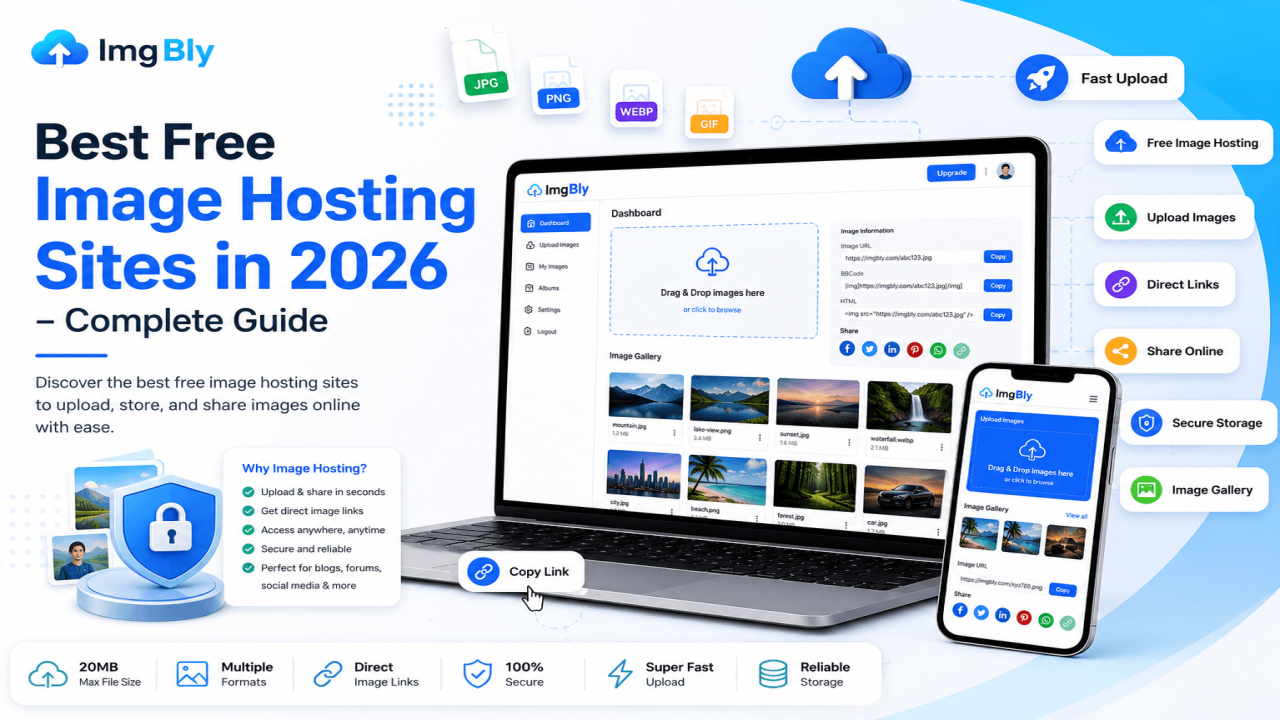
ImgBly also has a guide that compares image-hosting options and the kinds of situations they work for. Best Free Image Hosting Sites in 2026: Complete Guide
Conclusion
If you want to upload images for free without having to sign up the main steps are simple: pick an image host that works for you choose the file you want to upload send it to the site take the link that is created and check the link before you share it with others.
The important choice is picking the best way to do the job. A free image host is good for things like screenshots, GIFs, pictures for forums, previews and quick links. Cloud storage might be better if you want to keep your files in order. If the images are important for a business website you might need a service that gives you control over time.
ImgBly is a choice if you just need to upload images and share links. It currently works with image formats, direct URLs, HTML code, BBCode code and files that are protected with a password. No matter which service you use make sure the image does not have information and that the way you share it is the same, as how the image will be used.
Comments (0)